Most times forms are created to collect data, and sometimes this data has to be shared across teams. Submitting this data to a database is the normal convention, which can sometimes make it difficult to further share. However, using google app script api, we can successfully append form data into google sheets. This is great because it helps non-technical teams access and share data among themselves without much hassle.
In this article, I’ll be going over how to send data from your an HTML form to a google sheet where it can be further used.
To demonstrate how this is done, let’s pretend you have a B2B SaaS company preparing to launch a new product and we’ll need to do some marketing to retrieve some important data from our target audience.
Preparing the Google Sheet
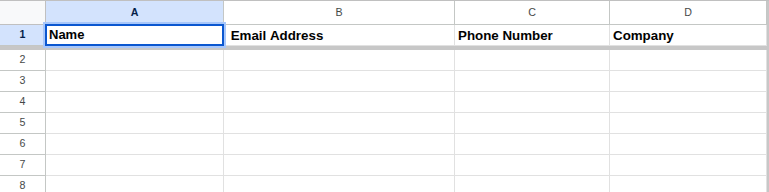
Let’s say we’d be collecting the following details from users: name, email address, phone number, and the company they are with. Create a google sheet with columns corresponding to the data you want to collect.
It should look something like this when you’re done:
Now we’re ready to add rows to this sheet using Google Apps Script. To get to the code editor for Google App Script:
- Open your Google Sheet/Doc (if you’re not there already)
- Click Extensions → Apps Script
- The code editor will open in a new tab
Here’s the entire code we’ll be using to add the rows from our HTML form to our google sheet:
function doPost(e) {
  try {
    const sheet = SpreadsheetApp.getActiveSpreadsheet().getActiveSheet();

    // Parse JSON data from POST request body
    const data = JSON.parse(e.postData.contents);

    // Prepare the new row data
    const newRow = [
      data.name || "",
      data.email || "",
      data.phone || "",
      data.company || "",
    ];

    // Append the new row
    sheet.appendRow(newRow);

    // Return success response
    return ContentService.createTextOutput(
      JSON.stringify({ result: "success" })
    ).setMimeType(ContentService.MimeType.JSON);
  } catch (error) {
    // Return error response
    return ContentService.createTextOutput(
      JSON.stringify({ result: "error", message: error.message })
    ).setMimeType(ContentService.MimeType.JSON);
  }
}
Yes, the syntax is similar to JavaScript.
Notice that we started the code with a doPost function. This is not just another function name; doPost is a special handler function in App Script responsible for handling HTTP POST requests, It is also one part of the requirement for creating a script as a valid web app. The other requirement is for our function to return an HTML service HtmlOutput object or a Content service TextOutput object. Both requirements are fulfilled in our code.
After writing this code, proceed by creating a new deployment.
To create a new deployment from Google Apps Script after writing your code:
- Click the “Deploy” button in the top right corner
- Select “New deployment” from the drop-down
- Click the gear icon ⚙️ next to “Select type”
- Choose “Web app”
- Configure the deployment settings:
- Description: Add a description (optional)
- Execute as: Select “Me”
- Who has access: Choose “Anyone”
- Click “Deploy”
- Click “Authorize access”
- Authorization required: Google will show a warning page saying “Google hasn’t verified this app”
- Click “Advanced” at the bottom left
- Click “Go to [Your Project Name] (unsafe)”
- Review the permissions and click “Continue”
- Copy the Web app URL that appears - this is your
googleScriptUrlThe URL will look like:https://script.google.com/macros/s/YOUR_DEPLOYMENT_ID/exec
Note: If you make changes to your code later, you’ll need to create a new deployment or manage existing deployments via Deploy → Manage deployments.
With that set, let’s create the HTML form to send the data.
Creating the HTML Form
Remember the details we’re collecting from the users are just their names, email addresses, phone numbers, and the companies or organizations they work for. Here’s what that should look like in HTML code:
<form action="/submit" method="POST" class="form">
  <label>
    Name
    <input type="text" name="name" required />
  </label>
  <label>
    Email Address
    <input type="email" name="email" required />
  </label>
  <label>
    Phone Number
    <input type="tel" name="phone" required />
  </label>
  <label>
    Company or Organization
    <input type="text" name="company" required />
  </label>
  <button type="submit">Submit</button>
</form>
Notice that we didn’t directly add the google sheet app script URL to the form’s action attribute. Instead, we’re sending a POST request to our own server endpoint (/submit).
Creating the Server
Since we’re handling the form submission from the server, it makes sense to also serve our home page containing the form, from the server too.
const express = require("express");
const path = require("path");
const app = express();
const port = 3000;

// Serve the homepage
app.get("/", (req, res) => {
  res.sendFile(path.join(__dirname, "public", "index.html"));
});

app.listen(port, () => {
  console.log(`App listening on port ${port}`);
});
Note: Based on the code, the index.html file needs to be in the folder ‘public.’
Now the home page can be served, let’s work on creating a route handler to handle the form submission.
// Handle form submission
app.post("/submit", async (req, res) => {
  const formData = req.body;
  try {
    const googleScriptUrl = "PASTE_YOUR_GOOGLE_APPS_SCRIPT_URL_HERE";
    // Send form data to Google Apps Script via POST
    const response = await fetch(googleScriptUrl, {
      method: "POST",
      headers: { "Content-Type": "application/json" },
      body: JSON.stringify(formData),
    });
    if (!response.ok) {
      throw new Error(
        `Google Apps Script responded with status ${response.status}`
      );
    }
    const responseText = await response.text();
    console.log("Form submitted to Google Apps Script:", responseText);
    res.send("Form received and sent to Google Sheets successfully!");
  } catch (error) {
    console.error("Error submitting form:", error);
    res.status(500).send("Failed to submit form data.");
  }
});
The reason we’re using server-side code to handle the form submission is because we need to hide our app script URL — we don’t want anyone spamming our google sheets with unwanted data. Remember the configuration on our App Script web app is set to allow anyone with the app script URL update the google sheet.
Don’t forget to add the URLencoded middleware to your code so you can read the data from the form.
app.use(express.urlencoded({ extended: true }));
Wrapping up
Pairing your HTML forms with google sheets via Google Apps Script provides a way for non-technical users to easily access, utilize, and share data among themselves. Though not completely free, this setup comes in handy for surveys, contact forms, registrations, and other lightweight workflows.